Master 3D Photo Editing: Step-by-Step Tutorial

In the realm of digital photography and design, 3D photo editing has emerged as a powerful tool for creating visually stunning images. Unlike traditional 2D editing, 3D photo editing allows artists and designers to manipulate depth and perspective, creating dynamic images that pop off the screen. Whether you’re a professional photographer looking to enhance your portfolio or a hobbyist wanting to explore new creative avenues, mastering 3D photo editing can open up a world of possibilities.
Understanding the Basics of 3D Photo Editing
Before diving into the tutorial, it’s essential to understand the basics of 3D photo editing. This process involves using specialized software to manipulate images in three dimensions. This can include adjusting the depth, adding textures, and even integrating new lighting effects to create a more realistic or artistic image.
Key components of 3D photo editing include:
– Depth: The ability to add or modify the perceived distance between objects in an image.
– Texture: Applying different surface qualities to objects to make them appear more realistic.
– Lighting: Modifying light sources and shadows to create mood and depth.
Choosing the Right Software
To begin your journey into 3D photo editing, selecting the right software is crucial. Popular choices include Adobe Photoshop, Blender, and Autodesk Maya. Each of these programs offers unique features suited to different levels of expertise.
– **Adobe Photoshop**: Known for its user-friendly interface, Photoshop is an excellent choice for beginners and professionals alike. It offers robust 3D editing capabilities through its 3D workspace.
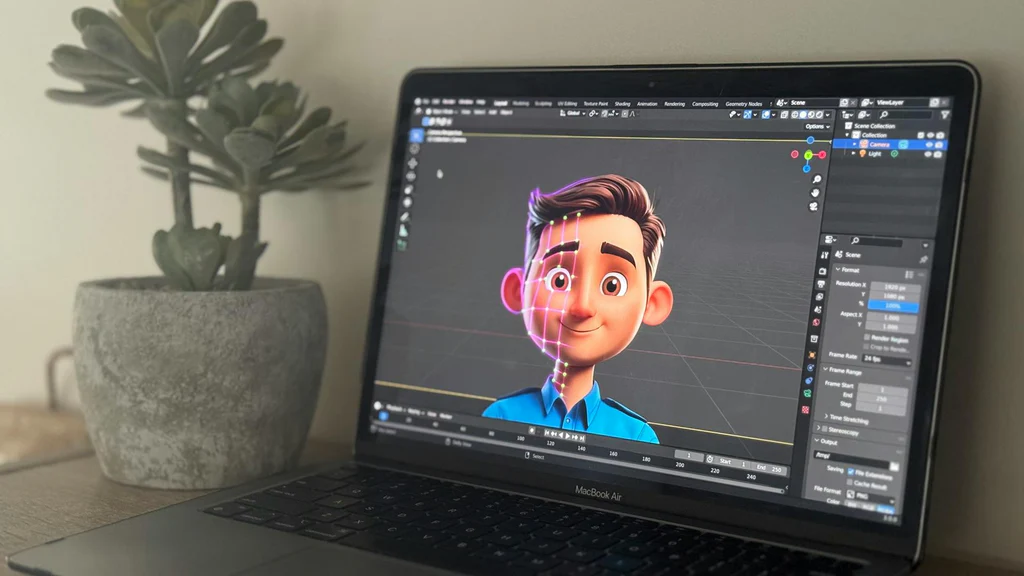
– **Blender**: This open-source software is widely used for creating 3D graphics, offering a comprehensive set of tools for modeling, texturing, and rendering.
– **Autodesk Maya**: Preferred by professionals in the film and gaming industry, Maya provides advanced features for creating intricate 3D models and animations.
Step-by-Step Tutorial
Step 1: Setting Up Your Workspace
Regardless of the software you choose, the first step is to set up your workspace. This involves organizing your tools and panels to ensure a smooth editing process. In programs like Photoshop, you can customize your workspace by adding or removing panels based on your project needs.
Step 2: Importing Your Image
Once your workspace is ready, import the image you wish to edit. In Photoshop, this can be done by navigating to File > Open and selecting your image file. For Blender and Maya, you may need to import the image as a texture or background for modeling.
Step 3: Creating a 3D Layer
With your image loaded, the next step is to create a 3D layer. This involves converting your 2D image into a 3D object. In Photoshop, you can achieve this by going to 3D > New 3D Layer from File. This action transforms your image into a 3D layer that can be manipulated along the X, Y, and Z axes.
Step 4: Adjusting Depth
Adjusting the depth of your image is crucial to achieving a realistic 3D effect. Use the software’s tools to manipulate the Z-axis, which controls the depth of objects. In Photoshop, you can use the 3D Panel to adjust the position of your image along the Z-axis, creating a sense of depth.
Step 5: Adding Textures
Textures can bring your 3D image to life by adding detail and realism. Most 3D software provides a library of textures, or you can import your own. In Blender, for instance, you can add a texture by selecting your object, navigating to the Texture tab, and choosing an appropriate texture map.
Step 6: Enhancing with Lighting
Lighting is a powerful tool in 3D photo editing. It enhances depth and can change the mood of your image. Experiment with different light sources and angles to see how they affect your image. In Maya, you can add a light by going to Create > Lights and choosing from options like Directional Light or Spot Light.
Step 7: Refining Your Image
After adjusting the depth, textures, and lighting, take time to refine your image. This can include smoothing out rough edges, adjusting colors, and adding final touches to enhance the overall appearance. In Photoshop, tools like the Brush and Clone Stamp can be used for detailed refinements.
Step 8: Rendering Your Final Image
Rendering is the final step in the 3D photo editing process. This is where your edited image is processed into a final output. Ensure all your settings are optimized for the best quality output. In Blender, rendering can be done by navigating to the Render tab and clicking on Render Image.
Advanced Techniques to Explore
Once you’re comfortable with the basics, consider exploring advanced techniques to further enhance your 3D editing skills. These can include:
– **Animation**: Bring your 3D images to life by learning how to animate objects and scenes.
– **Sculpting**: Use sculpting tools to add intricate details and textures to your 3D models.
– **Compositing**: Combine multiple images and effects to create complex scenes and compositions.
Conclusion
Mastering 3D photo editing can significantly enhance your creative projects, allowing you to produce professional-quality images with depth and realism. By following this step-by-step tutorial, you can build a strong foundation in 3D editing and explore a world of creative possibilities. Whether you’re enhancing your photography or creating entirely new artworks, 3D photo editing opens the door to a new dimension of creativity. Remember, practice is key, so continue to experiment with different techniques and software to refine your skills and expand your artistic horizons.
Resources for Further Learning
To continue your learning journey, consider exploring online courses, tutorials, and forums dedicated to 3D photo editing. Websites like Blender Artists and Adobe’s Creative Cloud tutorials offer valuable resources and community support for both beginners and advanced users. With dedication and practice, you can become proficient in 3D photo editing and unlock new creative potential.






Post Comment